
Cables
212 results
Cables
212 results
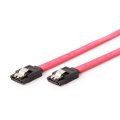
Data, video, power and adapter cables sorted by connector pair so installers find what they need without scrolling. The section covers USB-C (Universal Serial Bus Type-C) to HDMI, DisplayPort to mini-DP, RJ45 patch and many other working combinations, with cable lengths from very short patch leads through longer extension runs for AV racks and structured cabling deployments at scale.




Loading...
Category overview
Cables and small connectivity hardware are the connective tissue of a working setup. This section groups the parts that move data and power between a PC, its peripherals and any expansion equipment, along with the hubs and adapters that bridge mismatched ports.
What this category covers
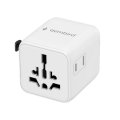
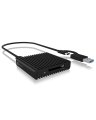
Data cables for displays, storage and networking; power cables and extension leads; USB and interface hubs; and card readers used to transfer files from memory cards. Subcategories break these out by purpose so the right item is easy to find.
Who this category is for
IT teams stocking spare cables for fleet repairs, system builders finishing a new desktop, and technical buyers looking for a specific connector standard or cable length.
How to choose cables and connectivity hardware
Confirm the connector at both ends
Most cable issues come from a small mismatch between connector type, version or pin layout. Note the exact port on the source device and the target device before ordering, including the USB generation (USB 2.0, USB 3.x, USB-C (Universal Serial Bus Type-C) with or without DisplayPort alt-mode), HDMI version, or DisplayPort version where relevant.
Choose a length that matches the route
A cable that is too short forces equipment placement; one that is too long collects dust and adds signal loss on high-speed standards. Measure the actual route, not the straight-line distance, and add a small margin for routing.
Match the cable rating to the data rate
High-speed standards like Thunderbolt, USB 3.2 Gen 2x2 and HDMI 2.1 only deliver their full performance with cables certified for that rate. A cheaper cable will physically connect but may run at a lower speed or fail intermittently under load.
Plan power separately from data
Power cables and adapters have different ratings (current, voltage, plug type) and should be selected based on the total load they will carry. Mixing data and power into one cable only works for specific standards such as USB-C with Power Delivery.
What to check before buying
- Which exact connectors and standards are at each end of the cable run?
- What data rate or power level does the cable need to carry?
- Is the cable run permanent, or will it be plugged and unplugged frequently?
- Is shielding or a specific cable jacket needed for the environment (industrial, in-wall, plenum)?
- Does the setup need a hub, an adapter, or a single direct cable?
Frequently asked questions
What is the difference between USB 3.0, USB 3.1 and USB 3.2?
The USB-IF reorganized its naming, so the same physical port may carry different speeds depending on the host and cable. USB 3.2 Gen 1 (formerly 3.0) runs at 5 Gbps, Gen 2 at 10 Gbps and Gen 2x2 at 20 Gbps over USB-C. The cable, host and device all have to support the higher rate to reach it.
Do I need an active or passive cable?
Passive cables work for most short runs at common data rates. Active cables include a small chip that boosts the signal, allowing longer runs at higher speeds. For Thunderbolt, HDMI 2.1 or DisplayPort over a few meters, an active or fiber-optic cable is usually required.
Will a USB hub slow down my devices?
A hub shares the bandwidth of the upstream port between all connected devices. For keyboards, mice and storage used one at a time, this is rarely noticeable. Running multiple high-speed devices, like external SSDs or capture devices, on a single hub can hit the limit. A powered hub also avoids issues when several devices draw current at once.
What is the right card reader for SD and microSD cards?
For modern SD cards, a UHS-II reader is required to reach the rated speeds; a basic UHS-I reader works but caps the transfer rate. CFexpress and XQD cards need their own specific readers. A multi-slot reader is convenient when several formats are in regular use.
Are all USB-C cables the same?
No. USB-C is a connector, not a single standard. The cable can carry anything from USB 2.0 speed and 3 A power up to Thunderbolt 4 with 100 W Power Delivery and DisplayPort video. Always check the specifications, especially when charging laptops or driving displays.
Can I extend a cable with a coupler?
Couplers work for low-speed cables but introduce a junction that can cause issues at high data rates. For HDMI, DisplayPort and USB above a few meters, an active extender or a single longer cable is more reliable.