
POS Terminals & PDAs
33 results
POS Terminals & PDAs
33 results
POS (Point of Sale) terminals and PDA (Personal Digital Assistant) devices are the primary computing hardware used at the point of sale. The category covers fixed Desktop POS terminals running till software at a counter, mobile POS units carried around the store, handheld PDAs used for stock-take, self-checkout kiosks operated by the customer, and barcode scanners that feed product data into them.
Loading...

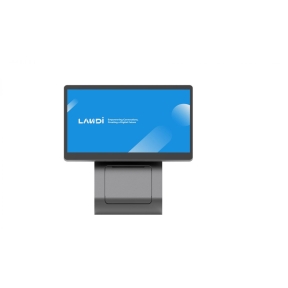

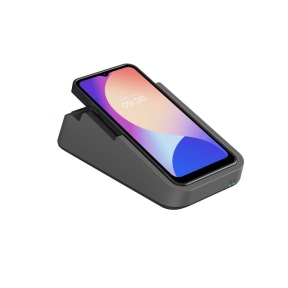
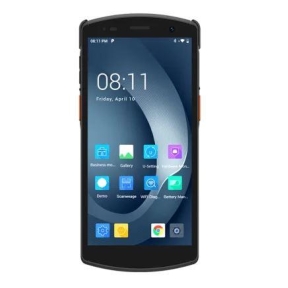
MPN: I23M03432NFC
MOBILE POS DEVICE SWIFT 1 PRO/I23M03 4 32 NFC IMIN
8-Core, QuadxA73 and QuadxA53, 2.0GHz
Android
4GB
8-Core, QuadxA73 and QuadxA53, 2.0GHz
Android
4GB

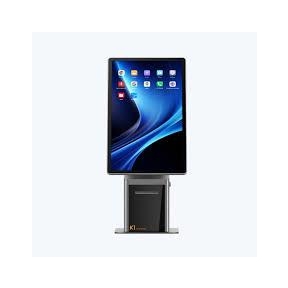

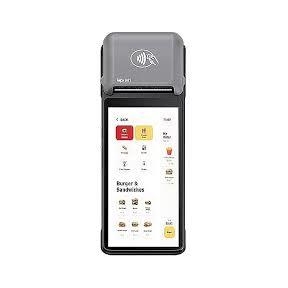


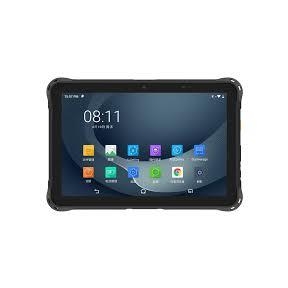
MPN: P8100P5G-8WNEE02
HANDHELD DATA TERMINAL 10/8/128GB P8100P5G-8WNEE02 UROVO
Octa-core 2.4GHz
Android
8GB
Octa-core 2.4GHz
Android
8GB

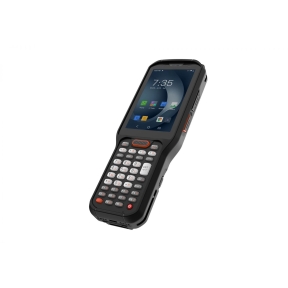
MPN: RT40S-4W0EE-C38Z-03
HANDHELD DATA TERMINAL/4/64 RT40S-4W0EE-C38Z-03 UROVO
Qualcomm Octa-Core 2.45GHz
Android
4GB
Qualcomm Octa-Core 2.45GHz
Android
4GB


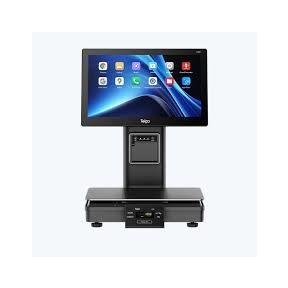

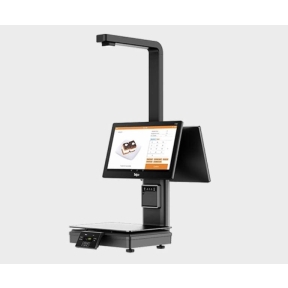

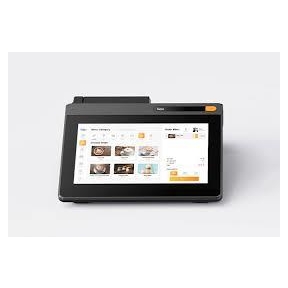

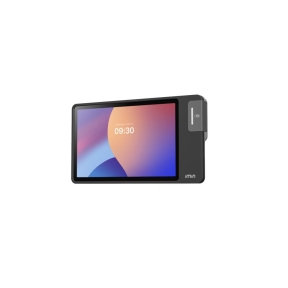
POS (Point of Sale) terminals and PDAs
The computing hardware behind every checkout: terminals on the counter that run the till software, and ruggedised PDAs that move stock around the shop floor and the warehouse. Both are designed for environments that are tougher on equipment than an office desk: spills, drops, dust, long opening hours and heavy daily use.
What this category covers
All-in-one POS terminals (touchscreen, PC inside, often with integrated card reader); modular POS terminals (separate PC unit plus customer-facing display); ruggedised PDAs and handheld scanners with built-in barcode readers; and self-service kiosks for unattended retail.
How to choose a POS terminal
Confirm software compatibility first
The till software's hardware compatibility list is the deciding factor. A terminal that is not on it may work but ties the business to figuring out integration alone, with no support fallback when something fails during peak trade. Pick from the supported list whenever possible.
Pick the screen size and orientation
15-inch terminals are the workhorse size for general retail. 12-inch and 13-inch fit smaller counters and quick-service. 21-inch terminals are common in restaurants and venues with more complex menus. Some terminals support a customer-facing second screen; if the till workflow includes showing receipts or signature pads to the customer, this matters.
Check the touchscreen technology
Projected capacitive (PCAP) touchscreens are the modern standard: glove-friendly versions exist for cold environments, multi-touch for tablet-style gestures, and the glass surface cleans easily. Older resistive touchscreens are cheaper but less responsive and need a stylus or harder press. For new purchases, PCAP is the safer choice.
Match the operating system to the software
Windows IoT (formerly Windows Embedded) is dominant in dedicated POS terminals; Android is common on PDAs and tablet-based POS. Linux appears on some kiosks. Choose the operating system the till software supports natively, not the one with the most generic options.
How to choose a PDA (Personal Digital Assistant)
Match the durability to the environment
Light retail use needs basic ruggedness; warehouse and outdoor use needs IP65 dust and water rating, drop ratings of 1.2 metres or more, and gloves-friendly touchscreens. The price difference is real but the spare-stock cost of fragile devices in a rough environment is higher.
Plan battery life and charging
Specify a battery for a full shift with margin. Hot-swappable batteries let one PDA stay in service across two shifts. Charging cradles should sit at the natural end-of-shift location; battery contacts wear and need clean placement.
Confirm the scanner type
1D laser scanners are fast and cheap for retail barcodes. 2D area imagers handle QR, DataMatrix and damaged barcodes; they are the modern default. For long-range scanning (top shelf in warehouses), specify the scanner range explicitly.
What to check before buying
- Till software name and the supported terminal and PDA models?
- Touchscreen size and orientation needed at the counter?
- Indoor counter use, outdoor markets, warehouse or mixed?
- Battery shift length for PDAs?
- Warranty tier and on-site replacement requirements?
Frequently asked questions
What is the difference between a POS terminal and a regular PC?
POS terminals are designed for shop-floor life: spill-resistant chassis, durable touchscreens, fanless cooling that does not pull in dust and grease, integrated peripheral connections (cash drawer, receipt printer, customer display), and longer manufacturer warranty terms. They cost more than a generic PC of the same performance and pay back through reliability under heavy daily use.
Can the same terminal serve every till in our chain?
Standardising on one terminal model across all branches simplifies training, support and spare stock. The trade-off is that one model rarely fits every counter format, every climate and every workflow. Most chains pick two or three approved models for different roles and stick with that mix.
Are Android PDAs cheaper than Windows ones?
Generally yes. Android PDAs cost less and have a wider hardware ecosystem, especially in the mid-range. Windows-based ruggedised tablets cost more but integrate cleanly with Windows-based stock management. Pick by what the back-office software runs, not by price alone.
How do POS terminals handle EMV card payment?
Either with an integrated PIN pad in the terminal or with a separate certified payment terminal connected by USB or serial cable. The acquirer (the bank handling card payments) certifies one or the other; the merchant rarely has free choice. Confirm with the acquirer before specifying terminals.
Why are PDAs more expensive than consumer phones?
Industrial PDAs include a dedicated barcode scanner with long-range optics, longer-lasting batteries, ruggedised drop-tested chassis, IP-rated dust and water sealing, longer firmware support life and longer parts availability. Consumer phones can run scanning apps but lack the optics, durability and support life that retail and warehouse workflows depend on.