
HDDs
244 results
HDDs
244 results
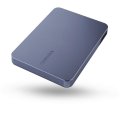
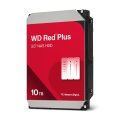
Hard Disk Drives for bulk storage, backups, archives and Network Attached Storage (NAS) use. The selection covers internal 3.5-inch and 2.5-inch drives in different RPM and workload classes, alongside external desktop and portable hard drives. Subcategories separate internal from external so the form factor and interface match the use, and so workload class can be compared within a single tier.


Loading...
Category overview
Hard drives remain the most cost-effective way to store large amounts of data. They are slower than Solid State Drives but make sense for backups, media libraries, archives and any workload where capacity matters more than speed. The category covers both internal drives that mount in a PC or NAS (Network Attached Storage), and external drives that connect over USB.
What this category covers
Internal 3.5-inch desktop and NAS hard drives, internal 2.5-inch drives for notebooks and small chassis, external desktop drives with their own power supply, and portable USB hard drives that are bus-powered.
Who this category is for
System builders adding bulk storage, IT teams running backup or archive systems, photographers and video editors holding large media libraries, and anyone replacing a failing drive in a notebook or desktop.
How to choose a hard drive
Internal or external
Internal drives sit inside the PC or NAS, are usually faster, and use the SATA interface. External drives are easier to add and move between machines but depend on the USB connection for performance. For permanent capacity expansion, internal is usually the right choice; for portable backups and offsite copies, external.
Match the workload class
Drives are sold in workload tiers: desktop drives for typical PC use, NAS drives rated for 24/7 multi-bay operation, surveillance drives optimized for continuous video write, and enterprise drives with the longest warranties and highest workload ratings. Using a desktop drive in a NAS or surveillance setup shortens its life noticeably.
Plan capacity with redundancy in mind
For NAS and other multi-drive setups, a single drive failure should not cause data loss. RAID (Redundant Array of Independent Disks) 1, RAID 5 or RAID 6 reduce usable capacity but protect against drive failure. Buying a slightly smaller capacity per drive in a redundant array is usually safer than a single very large drive.
What to check before buying
- Is the drive intended for desktop, NAS, surveillance or enterprise workloads?
- Does the host have the right interface and form factor (SATA 3.5-inch, SATA 2.5-inch, USB external)?
- Is the RPM and cache size matched to the speed expectations?
- Is there a backup or redundancy plan beyond a single drive?
- For external drives, is the USB version on the host fast enough to use the drive's speed?
Frequently asked questions
How long does a hard drive last?
Typical hard drive lifespan is three to five years of active use, with NAS and enterprise drives usually lasting longer. Drives often run for many more years before failure, but planning around the typical figure with regular backups is the safer approach. Drives that have failed once should not be reused for important data.
Can I use a desktop drive in a NAS?
Mechanically yes, but the manufacturer warranty and reliability assumptions differ. Desktop drives are rated for around eight hours of daily use; NAS drives are rated for 24/7 use with vibration tolerance for multi-drive bays. Using a desktop drive in a NAS shortens its lifespan and may invalidate the manufacturer warranty.
Should I buy a Shingled Magnetic Recording (SMR) drive?
SMR drives are slower at sustained writes than Conventional Magnetic Recording (CMR) drives and can interact badly with RAID rebuilds. For typical archival use, SMR is fine and the price is lower. For NAS, RAID and any write-heavy workload, CMR is the safer choice.
What is the difference between desktop and external hard drives?
The drive inside an external desktop hard drive is often the same as a separately sold internal drive, packaged with a USB bridge and a power supply. The external form factor is more convenient for casual use; internal mounting is faster, has fewer points of failure, and is usually cheaper per gigabyte.
Why is my external hard drive slow?
The most common causes are an underpowered USB port, a USB cable rated only for USB 2.0 speeds, or the drive itself running on a 5400 RPM mechanism. Try a different USB port and a known good cable, then check the rated drive speed. For SSD-like speed, an external SSD is required.